Install the Manager
What you'll do: download the installer, run it, and get the manager open for the first time.
Before you begin
- Windows 10 (21H2+) or Windows 11. See What You Need for the full checklist.
Steps
1. Download the installer
Go to the Software page at invictuscockpits.com and download the latest AIM-Cockpit-Manager-vX.X.X-Setup.exe.
2. Get past the SmartScreen warning
Double-click the downloaded file. Because AIM Cockpit Manager is a newly released app, Windows SmartScreen may show a blue "Windows protected your PC" screen. This is normal for new software and does not mean anything is wrong.
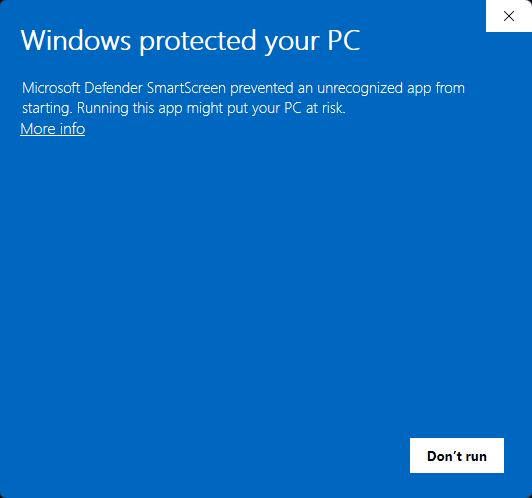
Click More info. The Publisher line should read Invictus Machine LLC, the legal entity behind Invictus Cockpit Systems (the installer is code-signed). Confirm that, then click Run anyway.
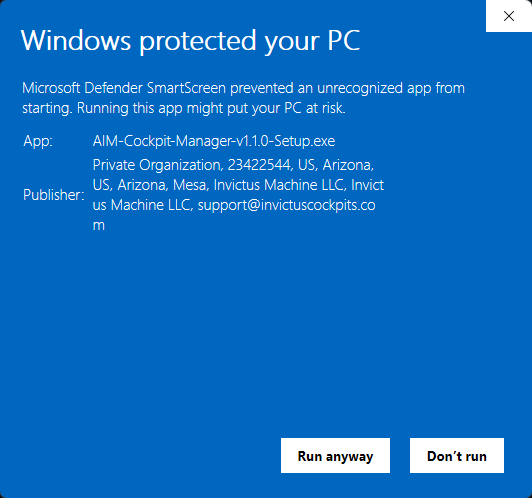
[!TIP] If the Publisher is blank or anything other than Invictus Machine LLC, stop. Don't run it. Re-download from the Software page. You can also verify the file directly: right-click it → Properties → Digital Signatures.
3. Choose how to install
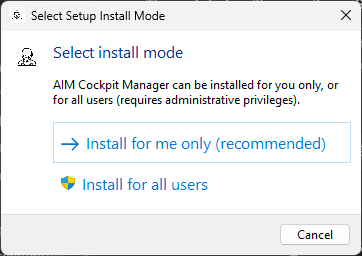
The installer asks how to install. Choose Install for me only (recommended). This installs just for your account and needs no administrator rights, so you won't see a User Account Control prompt. (Install for all users requires admin and isn't needed.)
3. Complete the installer
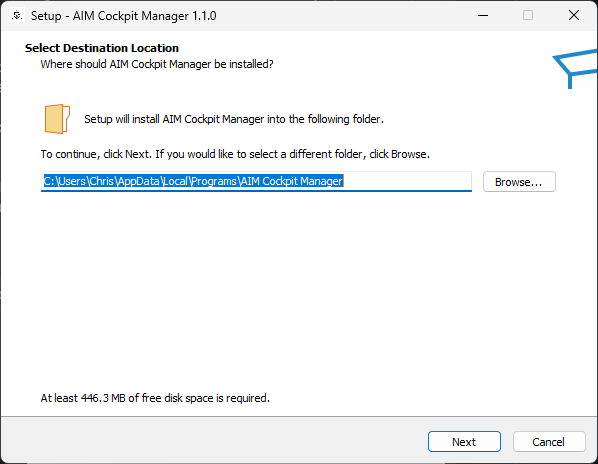
Click through the wizard. The default options are fine. It installs to your user profile (%LocalAppData%\Programs\AIM Cockpit Manager, no admin needed) and adds a Start Menu entry and an optional desktop shortcut.
4. Launch the manager
Open AIM Cockpit Manager from the Start Menu or desktop shortcut.
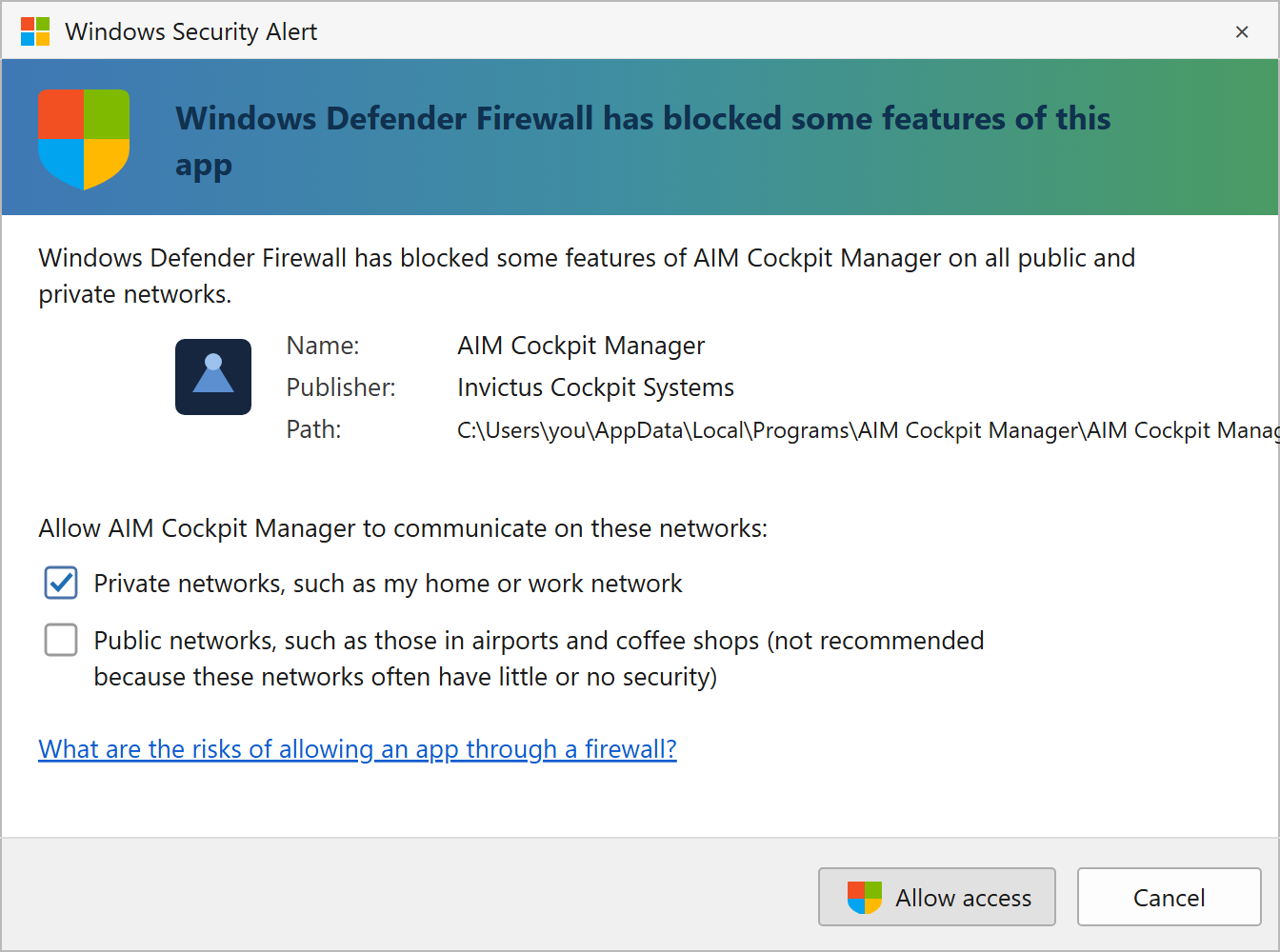
On the very first launch, Windows Defender Firewall may ask whether to allow the app on your network. Click Allow access and make sure the Private networks box is checked. The manager needs to listen for boards on your cockpit network; if you dismiss or block this prompt, boards won't appear; see Troubleshooting if that happens.
5. Check for updates
The manager checks for a newer version each time it launches. If an update is available, a banner appears across the top of the window. You can install updates from there. No need to re-download the installer from the releases page.
Check it worked
The manager should open to the Network page and show a status bar at the bottom. It's normal to see "No boards connected" at this point. You haven't set up the network yet.
If something's wrong
| Problem | Fix |
|---|---|
| Windows SmartScreen says the app is unrecognized | Re-download from the Software page, then check Properties → Digital Signatures shows Invictus Machine LLC. If it does, click More info → Run anyway. |
| Installer won't run / Windows blocks it | Right-click the installer → Properties → Unblock → try again. |
| Manager won't open after install | Check Start Menu for "AIM Cockpit Manager." If it's not there, re-run the installer. |
| Boards not appearing after launch | Continue to Set Up the Cockpit Network. Discovery needs the network configured first. |