The Library
The Library page shows every livery in your selected DCS folder, grouped by aircraft, with per-livery and per-aircraft sizes and a running total at the top.
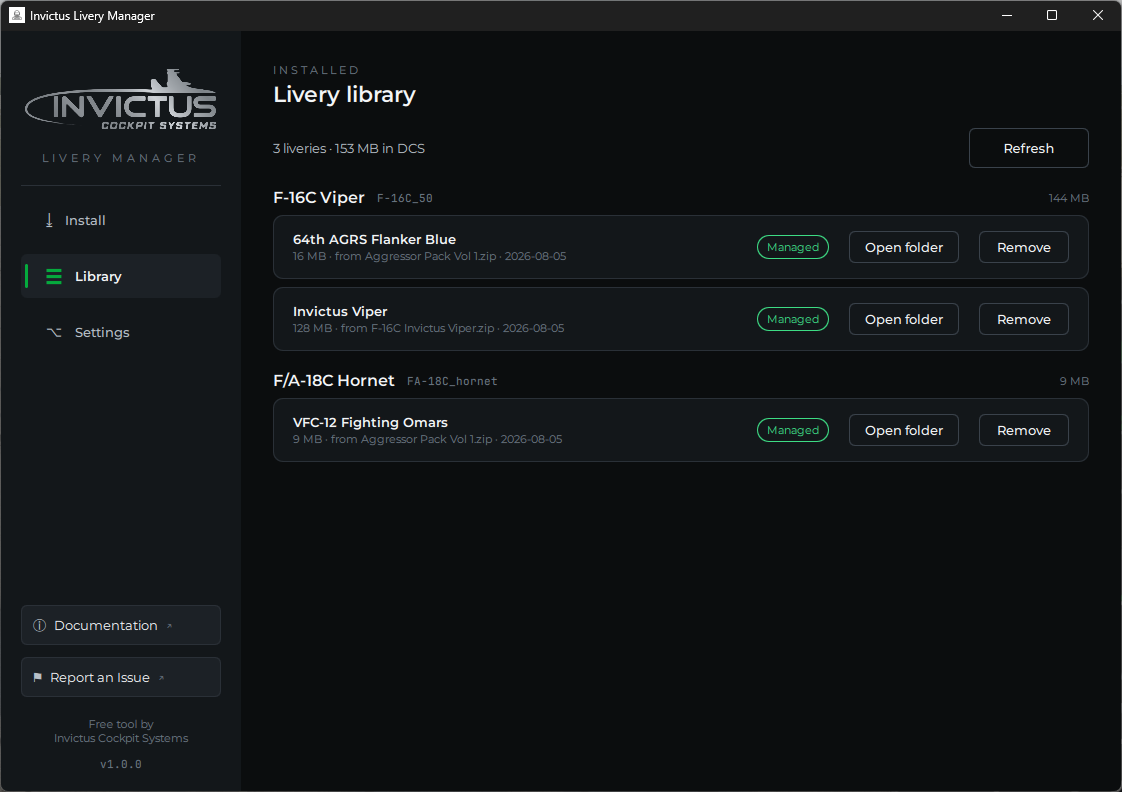
An aircraft's cockpit liveries (like the VR Passthrough cockpit) are listed in the same group as its regular skins, marked with a green Cockpit badge; the small folder names next to the heading show where each kind lives on disk.
Managed vs Manual
Each row carries a provenance pill:
- Managed (green): installed by the Livery Manager. The manager remembers which archive it came from and when, shown right under the name. Managed liveries can be re-installed, updated, or removed freely.
- Manual (gray): found in your Liveries folder but not installed by the manager. Either you copied it in by hand or another tool did. The manager lists it so you can see your whole collection, but it will never overwrite or delete a manual livery without asking you first.
Removing a livery
Click Remove and confirm. The livery's folder is deleted from
Saved Games\...\Liveries, and if that leaves the aircraft's folder empty,
the empty folder is tidied away too. Removing a Manual livery shows a
stronger warning first, since it isn't the manager's to delete quietly.
Note
Like installing, removing takes effect the next time DCS starts. A running sim keeps showing the livery until it's fully closed and relaunched. Missions that reference the removed livery fall back to the aircraft's default skin.
Open folder
Open folder shows the livery in Windows Explorer, which is handy for
checking textures, editing description.lua, or zipping a livery up to
share.