Install the Virtual-Joystick Driver
What you'll do: install the AIM Ghost Joystick driver so Falcon BMS can receive inputs from your cockpit panels.
Before you begin
- You are setting up BMS. If you're only using DCS, you don't need this driver. The boards talk to the manager without it.
- The manager is running. See Install the Manager.
What this driver does
BMS reads game controllers using standard HID (joystick) input. Your cockpit panels are not game controllers, so the manager installs an AIM Ghost Joystick virtual driver that creates up to five virtual joystick devices on your PC. The manager bridges input from your boards to these virtual devices, and BMS reads them like any other controller.
The driver is EV-signed (Extended Validation code signed by Invictus Machine LLC) and does not require any Windows security changes.
Steps
The driver is installed from within the BMS KEYFILE dialog. If you haven't opened it yet:
- On the manager home page, click Setup BMS keyfile on the BMS KEYFILE card.
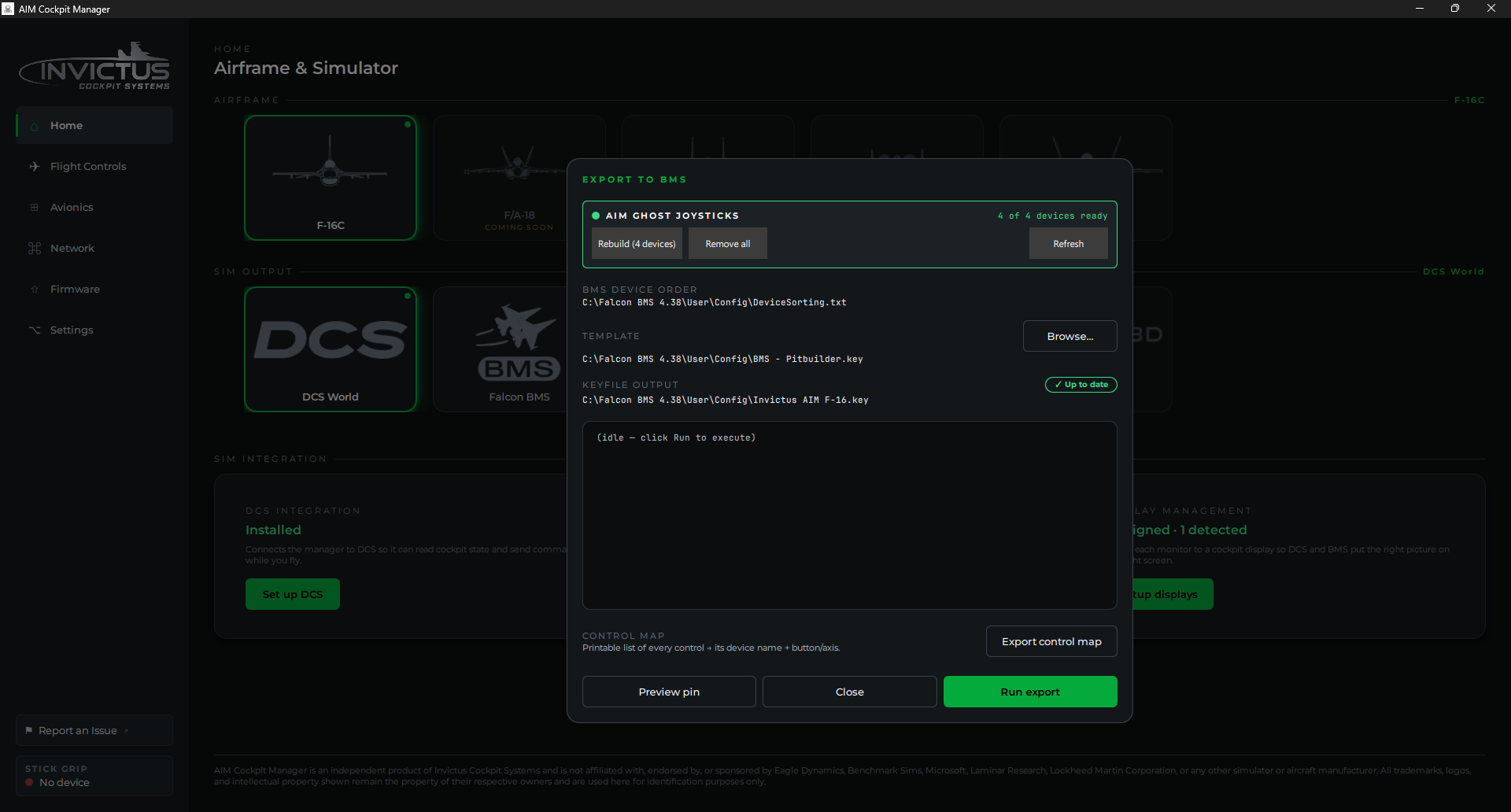
The top of the dialog shows the AIM GHOST JOYSTICKS status.
If the status shows "Not installed"
- Click Install driver. Windows will prompt for administrator permission. Click Yes.
- The manager installs the driver and the status updates. This takes a few seconds.
- Click Create [N] devices to create the virtual joystick instances. The number shown matches what the airframe needs (four for the F-16C).
- The status changes to [N] of [N] devices ready.
If the status shows devices created but count is wrong
- If you see fewer devices than needed, click Create [N] devices to add the missing ones.
- If you see extra devices from a previous installation, click Remove [N] extra devices to clean up, then create the correct count.
- Click Remove all to tear everything down and start fresh if something looks off.
If the status shows "Update available"
Your installed driver is older than the one this manager version ships. Click Update driver and approve the Windows administrator prompt. The manager replaces the driver and rebuilds your joysticks with the same names and numbering, so your keyfile and bindings still apply.
Updating matters. Driver 1.0.2.0 (shipped with manager 2.2.1) sends each switch or axis change once. Earlier drivers sent it 10 to 60 times over, which cost CPU in every program reading the joysticks. Driver 1.0.1.0 (manager 1.6.2) fixed the virtual joysticks using far more CPU than they should with nothing running: if Task Manager shows WUDFHost.exe busy on an idle PC, update.
Check it worked
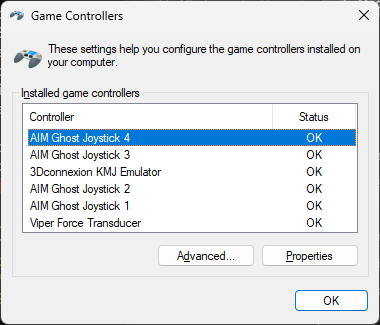
The status banner should read [N] of [N] devices ready with a green border. Open Windows Settings → Bluetooth & devices → Controllers (or joy.cpl in Run) and you'll see entries named AIM Ghost Joystick 1, AIM Ghost Joystick 2, and so on. One per virtual device created.
If something's wrong
| Problem | Fix |
|---|---|
| Install driver button does nothing | Right-click the manager shortcut and run as administrator, then try again. |
| Status still shows "Not installed" after clicking Install driver | The driver files may not have been included in this release. Contact support. |
| Devices disappear after a reboot | This can happen if Windows Device Manager cleans up virtual devices after an unexpected shutdown. Reopen the dialog and click Create devices again. |
| BMS doesn't see the joysticks after install | Make sure you generated a keyfile and loaded it: BMS won't show them as active until you've done the full setup. See Load the Keyfile. |
Next: Load the Keyfile
See also: Set Up Falcon BMS