Set Up Falcon BMS
What you'll do: install the AIM Ghost Joystick virtual driver, generate a BMS keyfile for your cockpit controls, and load it into Falcon BMS so your panels send inputs to the sim.
Before you begin
- Falcon BMS 4.37 or newer is installed and has been launched at least once.
- The manager is installed and running. See Install the Manager.
- At least one board is configured with controls assigned. See Assign Controls to Pins.
[!NOTE] BMS requires an AIM Ghost Joystick virtual driver to receive inputs from the cockpit network. The manager installs this for you as part of the BMS setup flow.
How BMS integration works
BMS reads cockpit inputs from HID joystick devices, not from the network directly. The manager creates the AIM Ghost Joystick virtual devices the airframe needs (four for the F-16C) on your PC, then generates a keyfile (Invictus AIM F-16.key) that maps every cockpit control to a button or axis on one of those virtual devices. Your physical boards send button presses to the manager, which forwards them to the virtual joysticks, which BMS reads as standard controller input.
Steps
1. Open the BMS keyfile dialog
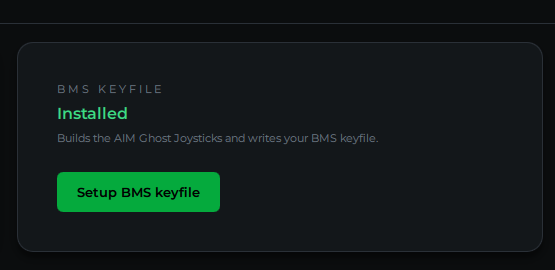
On the manager home page, find the BMS KEYFILE card and click Setup BMS keyfile.
2. Install the driver (first time only)
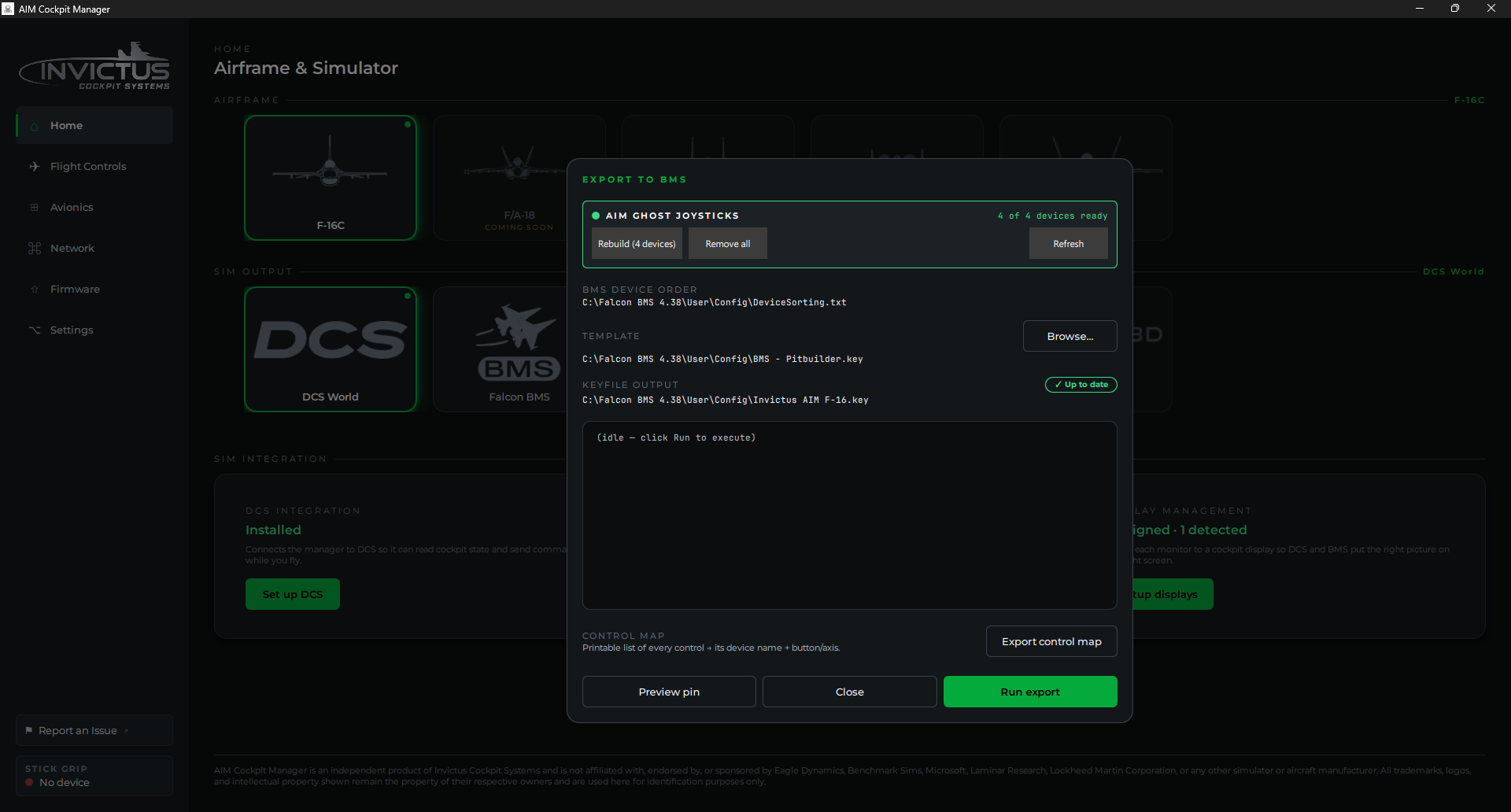
The top section of the dialog shows the AIM GHOST JOYSTICKS status. If it reads Not installed, click Install driver. Windows will ask for administrator permission. This is required to install the device driver.
After the driver installs, click Create [N] devices to create the virtual joystick instances the catalog needs (four for the F-16C).
The status changes to [N] of [N] devices ready once everything is set. See Install the Virtual-Joystick Driver for more detail if anything goes wrong.
3. Select a template (optional)
The dialog shows the TEMPLATE it will merge your bindings into. The default is BMS - Pitbuilder.key, which is the right choice for most builders who also use a HOTAS alongside the cockpit panels.
If you use a different BMS key layout as your base, click Browse… and select it. Your keyboard and HOTAS bindings from that template are preserved; the manager only adds and updates the cockpit-panel bindings.
4. Run the export
Click Run export. The manager does two things:
- Pins the device order. Writes
DeviceSorting.txtin your BMS config folder so BMS always sees the AIM Ghost Joysticks at the correct device numbers. A timestamped backup of your existing file is made automatically. - Generates the keyfile. Writes
Invictus AIM F-16.keyto[BMS install]\User\Config\.
The result pane shows what was written. A green border means success.
[!TIP] Click Preview pin first to see the DeviceSorting changes without writing them. This lets you check that the device order looks right before committing.
5. Load the keyfile in BMS
Open the BMS Launcher and load the keyfile in the Controllers setup. See Load the Keyfile for the exact steps, including the critical launch setting that keeps your bindings from being overwritten every time you start BMS.
Keeping the keyfile current
Any time you add controls, change pin assignments, or update the manager to a new version, the BMS KEYFILE card will show Update available. Open the dialog and run the export again. The process is identical to the first time.
Next: Install the Virtual-Joystick Driver · Load the Keyfile
See also: Cockpit Displays in BMS, Assign Axes in BMS