Install a Livery
1. Get a livery
Download any livery as a .zip, .7z, or .rar. The
DCS User Files
section is the biggest source, but anything works. There's no need to unpack
it yourself.
2. Drop it on the window
Drag the archive anywhere onto the Livery Manager window, or click Browse for a file on the Install page.
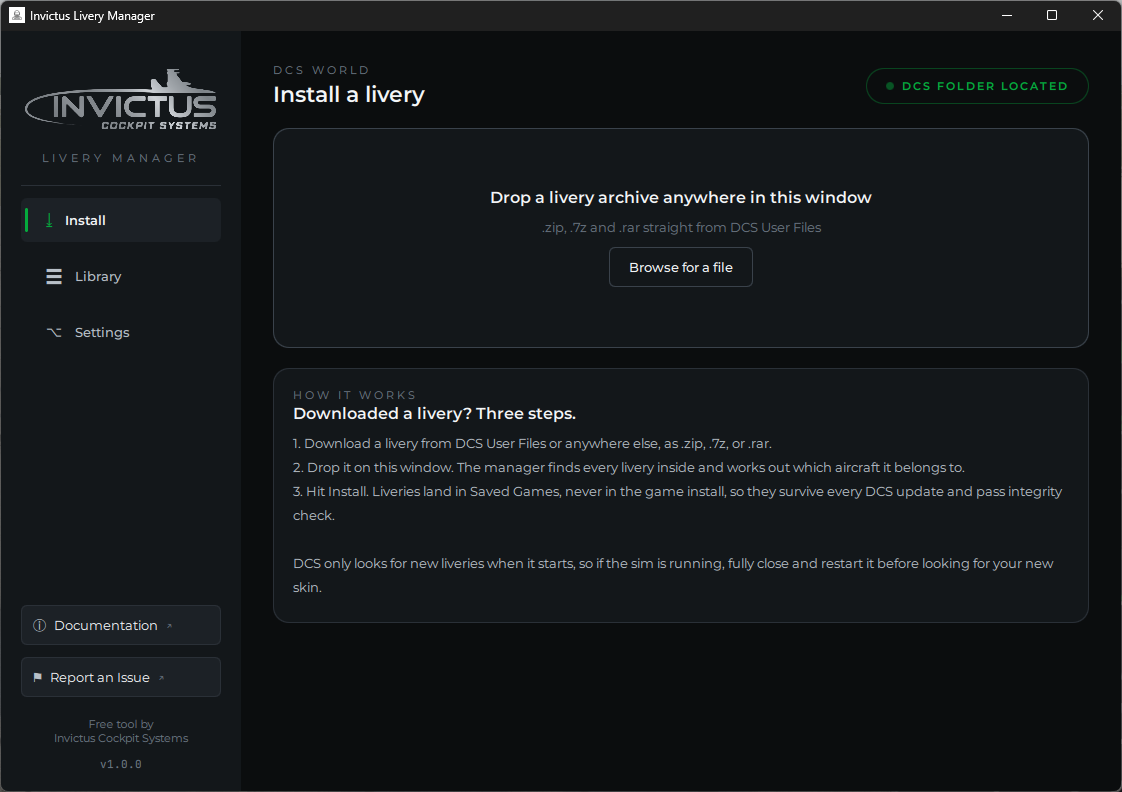
The manager unpacks the archive in the background and finds every livery inside, however the author structured it. Multi-aircraft packs, archives inside archives, and shared texture folders are all handled.
3. Review and install
Each livery found gets a row: its name (editable, if you'd like it listed differently in DCS), the aircraft it belongs to, and exactly where it will go.
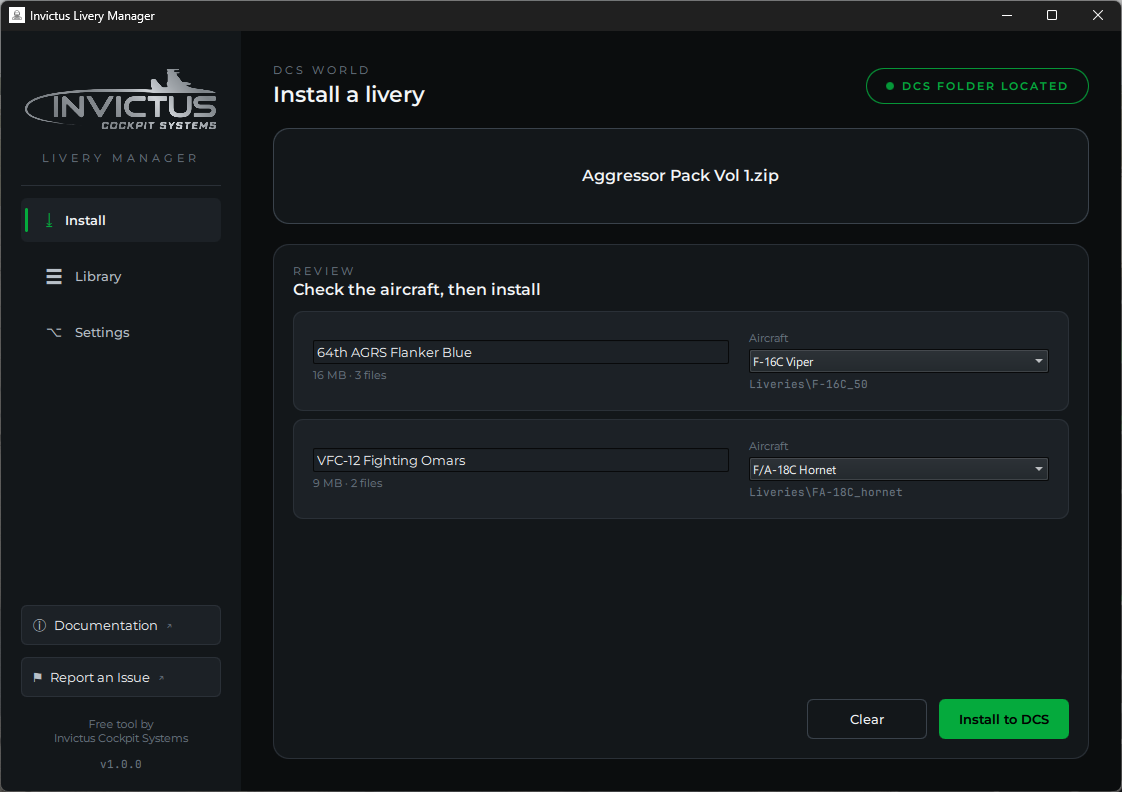
The aircraft is worked out from the archive's folder structure. When the manager is confident, the picker is filled in and you can go straight to Install to DCS. When it had to guess from the filename, or couldn't tell at all, the row is outlined in yellow with a Check the aircraft note: open the picker and choose the right aircraft before installing.
Fully close DCS to see your new livery
DCS only scans the Liveries folder when it starts. If the sim is running while you install, the livery will not appear until you fully close DCS and launch it again. In game, find it in the mission editor or rearm window under the aircraft's livery list.
Reinstalling and updating
Installing a livery that's already there (say, the author released a v2) just replaces it, no questions asked, as long as the original was installed by the manager. If the existing folder was installed by hand, the manager stops and asks before overwriting it.
Where things actually go
Every livery is copied to
Saved Games\<your DCS folder>\Liveries\<aircraft>\<livery name>, alongside a
small manifest file that records where it came from and when. Nothing is ever
written into the DCS installation directory, which means:
- DCS updates and repairs never delete your liveries
- Multiplayer integrity check never complains about them
- Uninstalling the manager doesn't touch your collection
Some liveries reference a shared texture folder (packs often ship a commons
folder used by several skins). The manager detects this and installs the
shared folder too, and it never overwrites a shared folder that's already
there.