Getting Started
Requirements
- Windows
- A connected controller: joystick, throttle, gamepad, or an AIM Ghost Joystick
Download
Grab the latest AIM-Joystick-Probe-Setup.exe from the Software page at invictuscockpits.com.
Install
Double-click the installer and follow the wizard. It's signed by Invictus Machine LLC, so Windows won't flag it as coming from an unknown publisher, and it installs just for you, with no administrator rights needed. The whole thing takes about a minute.
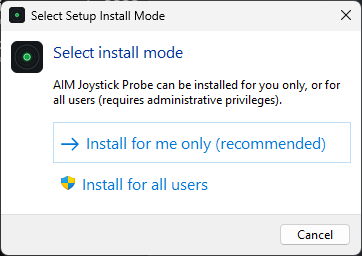
- Choose how to install. Pick Install for me only. This is the recommended option and needs no administrator prompt.
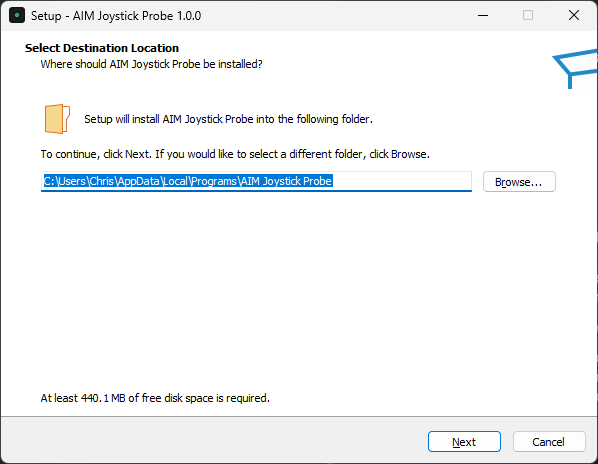
- Confirm where it goes. The default location is right for almost everyone. Click Next.
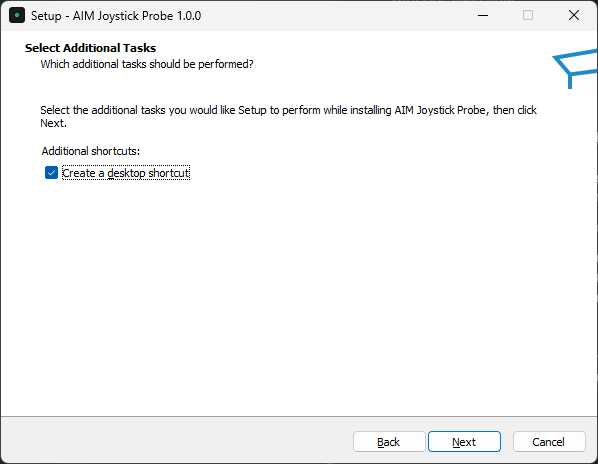
- Desktop shortcut. Leave Create a desktop shortcut checked if you'd like one on your desktop, then click Next.
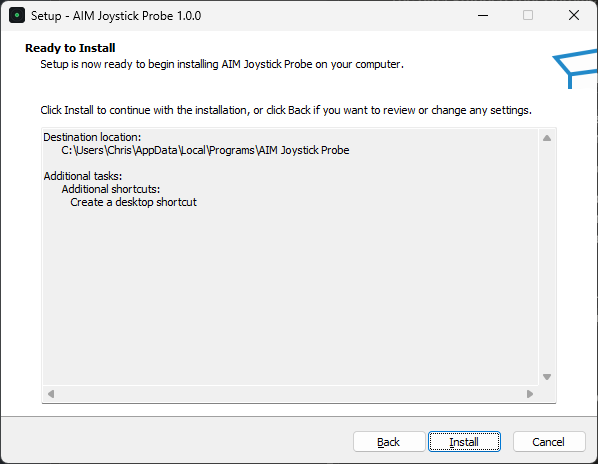
- Review and install. Check the summary and click Install.
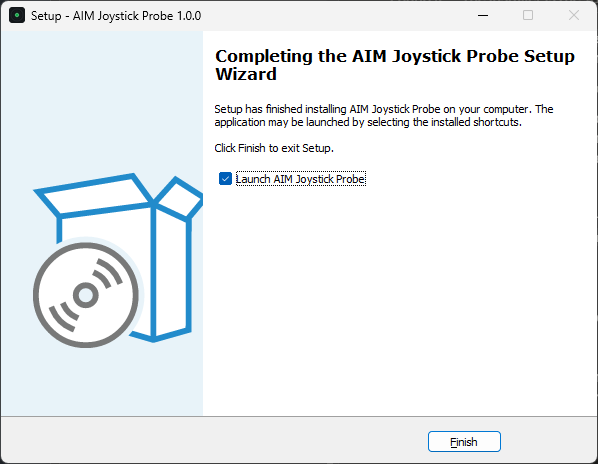
- Done. Click Finish. Leave Launch AIM Joystick Probe checked to open it straight away.
Running from source instead? Install the dependencies and launch:
pip install -r requirements.txt
python run.py
The window at a glance
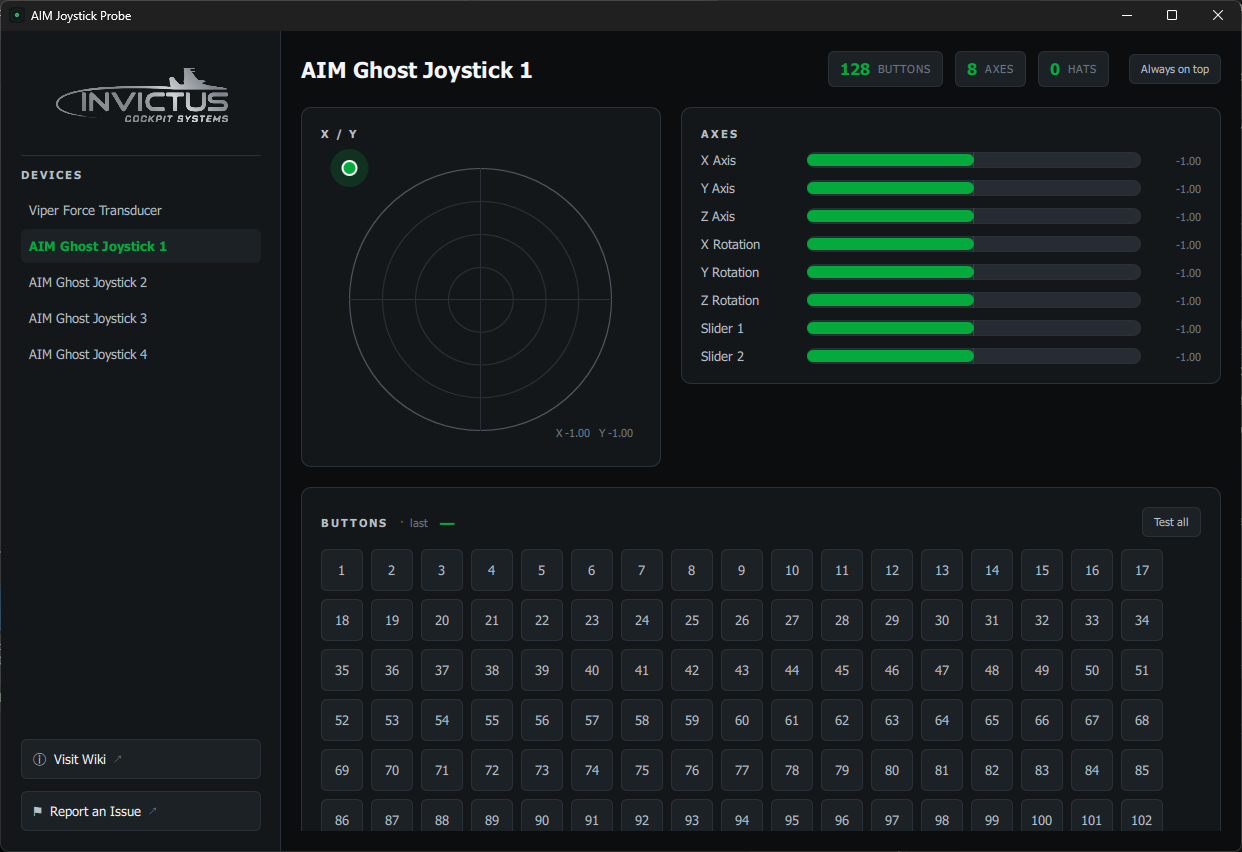
Sidebar. Your connected controllers. Click one to select it; the selected device's name turns green. Plug a controller in and it appears automatically. Any device you touch shows a green dot and a badge naming the input, even when it isn't selected (see Which device is that?). At the bottom: Save snapshot, Copy diagnostics, Visit Wiki and Report an Issue.
Header. The selected device's name and counts of its buttons, axes and hats, its report rate in Hz, and the settings gear (see Settings).
Cards. Each part of the device has its own card:
- X / Y: the first two axes plotted as a moving dot, with a trail
- Centering: where the stick comes to rest each time you let go, magnified
- Axes: every axis with its travel, noise and resolution
- History: the last 5 seconds of one axis or all of them
- POV Hats: each hat as a direction pad
- Force Feedback: test effects on force feedback devices (experimental)
- Buttons: every button; each lights green when pressed
- Event Log: every press, release and hat move, with switch bounce flagged
Click a card's title to collapse it to its header, and the (i) in its corner to open its section of this guide. Cards only appear when the device has what they show, and you can hide any of them in Settings.